Friday, 6 February 2015

Partition SD Card

using MiniTool Partition Wizard Home Edition


Simplest way is to use "MiniTool Partition Wizard Home Edition" from http://www.partitionwizard.com/download.html

This tool is compatible with Windows 2000/XP/Vista & Windows 7

requirements: USB SD Card reader.

pull SD card from phone, insert into USB SD Card reader. Windows should report new drive and content of the drive should be visible.


step 1: delete old partitions on SD card


Note: this partition manager QUEUES the operations. So nothing is deleted and changed UNTIL you click "APPLY" and then confirm by clicking "OK".

WARNING!

Make sure you are deleting partition on SD card! (not your hard drive for example)

This step deletes everything on SD card, so backup files first!

Dont be afraid, just read everything and think twice before selecting correct drive.

Do you see three gray icons on the bottom? Under each of them the capacity of each drive is listed, and SD CARD has slightly different icon.

Hard drives on the screenshot have 465.8GB and 74.5GB, and on the bottom, the SD card, with 3.8GB capacity.
step 2: create FAT or FAT32 partition


select "Create As": PRIMARY


Select "File System:" FAT when you have 2GB or smaller card.

Select "File System:" FAT32 when you have 4GB or greater card.
step 3: create ext2 or ext3 or swap partition*


select "Create As": PRIMARY


Select "File System:" ext2 - for App2SD

OR

Select "File System:" swap to make swap :)

If you want to create both: do not assign all the space for the first one :) this way you will have space for creating second one.

Import Contacts From Old Phone to New Phone

Contacts is very important for everyone of us. We can't connect to our friends without a contact number. If you have a new phone, saving contacts on the phone one by one is so hassle. But now, there's an easy way how to transfer or import your contacts from your old phone to your new phone.
Use your PC to transfer contacts to your new phone. This process is applicable in several phone brands, including iPhone, Samsung, HTC and Nokia.
You just need an Internet Connection on your PC, your old and new phone and their own USB cable.
Then you need to install the PC Companion program. This is a free application and the installation files are already saved on your new phone. This program can also be used in updating your phone software.
Please note that if you are using the Microsoft Windows 7 operating system on your PC, make sure that the AutoPlay setting is enabled.
To check your settings:
Click Start > Control Panel, then type "autoplay" on the search box. Click the AutoPlay, and mark the check box Use AutoPlay for all media and devices.
Installing the PC Companion:
Turn on your new Phone and connect it to your PC.
On your new Phone, tap "Install" to install PC Companion on the PC.
On your computer, if a pop-up window that appears notifies you about available PC Software, select Run Startme.exe.
Then click Install to start the installation and then follow the instructions to complete the installation.
If you are not prompted with a pop-up window to install the PC Companion, you can also download the PC Companion here.
Transferring your contacts to your new phone:
Make sure that PC Companion is installed on your PC.
Open the PC Companion application on your PC.
Then click Contacts Setup and follow the instructions to transfer your contacts.
Posted by Jeeshan Zeelani at 04:16 

Nokia Lumia 520 Tips & Tricks

Did you just created a nice piece of art on your new Nokia Lumia 520 phone? Or perhaps you've just personalized your screen and want others to know how you've come up with it.Well, take a screenshot and brag it to your friends. Here's how you can capture a screenshot of your Nokia device.

1. Press on the Power key on the right side of the phone and the Start key simultaneously for a few seconds.

2. To see the screenshot, tap on Photos, the Albums and select Screenshots.

3. Tap and hold the screenshot you wish to send and then tap on share on the options.

There you have it. You've just captured a screenshot.


How to Scan Codes on Nokia Lumia 520

Nokia's latest installment of smartphone, the Lumia 520, allows you to scan QR codes, barcodes and book and DVD covers. Your device will give you further info after you scan the codes. Here's how you can make use of this feature.

1. First, you need to tap the Search icon

2.  Then tap on

3. And point the camera at the code. Make sure to keep the camera steady on the code and should be completely visible in the camera viewfinder.


How to Make a Conference Call on Nokia Lumia 520


Conference calling is a network service. The maximum number of participants involve in a conference call varies by network service provider. Nokia Lumia 520 supports conference call between two or more people. Well, here's how you can make a conference call using your Nokia Lumia 520 phone.

1. Call the first participant of the conference call.

2. To make a call to another person, press , and make the call in the normal way.

3. When your call is answered, just tap


.

4. If you want to add another person to the call, just tap, then call another person and tap
.

Now, if you want to have a private conversation with someone while you're on a conference call, just tapand the person's name or number. The conference call is put on hold while other participants continue the conference call. Tap on to return to the conference call.


How to Make Your Nokia Lumia 520 a Wi-Fi Hotspot

Ever imagine how you can make your own Nokia Lumia 520  a WiFi hotspot? Well, sure you can. This feature allows for your other devices to pick up your mobile hotspot settings on your Nokia Lumia 520. This is more preferable when you’re in public trying to locate a WiFi connection. Nokia did not mention how many devices can connect to your Nokia Lumia 520, but usually it is 6-8 devices. Check out these steps for easy, convenient and a money-saver internet experience.

1. On your Start screen, swipe left, and tap  Settings.

2. Then select Internet sharing.

3. Switch the Sharing to On.

4. If you want to change the name of your connection, tap Setup > Broadcast name, then enter the name.

5. If you want to secure your Wi-Fi hotspot, then you can also type in a password for the connection.

6. Then select the connection on the other device.


Wait for few seconds and your phone will start broadcasting its WiFi network name. Now you’re ready to connect your other device to your portable mobile wifi hotspot.

Note: The other device uses data from your data plan, which may result in data traffic costs. For info on availability and costs, contact your network service provider.


How to Find a Lost Nokia Lumia 520

Losing a phone is sort of a matter of life and death these days especially if you have confidential files on it. If you misplaced your phone or someone has stolen it, then keep calm and follow the steps below so you can locate your phone and lock or delete all data on it remotely. All you need to have is a Microsoft account on your phone.

1. On your computer, laptop or tablet, go to www.windowsphone.com

2. Then sign in using the same Microsoft account as on your phone.

3. Choose find my phone. From there you can:

> locate your phone on a map
> make your phone ring even if its in silent mode
> lock your phone and set it to show a message so it can be returned to you
> delete all data from your phone remotely


How to Uninstall an App on Nokia Lumia 520

Deleting apps on your phone can free up your phone memory storage. So if think you're phone is a bit too crowdy and if some apps lurking in it deserves to be out of your phone memory then you might want to consider uninstalling those apps you no longer want to use. Here's how you can clean up and uninstall an app on Nokia Lumia 520.

1. On your device's start screen, swipe left to the all apps menu.

2. Then simply tap and hold an app and tap uninstall. Take note that you might not be able to remove some apps especially those that came with your phone.

As easy as that. If you wish to reinstall the app without buying it again, then you can do as as long as it is available in Store.


How to Personalize the Start Screen on Nokia Lumia 520

Do you want to get easy access on your most-used apps? Then pin your favorite apps, websites, contacts and much more right on your Nokia Lumia 520 start screen. Here are some ways on how you can personalize your start screen and make it look neater.

To pin an app:

1. On your device's screen swipe left to go to the apps menu.
2. Then tap and hold the app you wish to pin on the start screen.
3. And tap pin to Start.

To pin a contact:

1.First tapPeople.
2. Then tap and hold the contact you wish to pin on the start screen.
3. And tap pin to start. By pinning your a contact on the start screen, you'll be able
to see their feed updates on the tile and you can call them directly from the
start screen.

To pin a website:

1. Go to a website that you want to access instantly .
2. Then tapand choose pin to start.


To move a tile:

1. Just tap and hold the tile.
2. Then drag and drop it to the new location and finally tap the screen.

To resize a tile:

1. Tap and hold the tile you want to resize
2. And tap the arrow icon.

To unpin a tile:

1. Tap and hold the tile.
2. And tap


How to Download Maps on Nokia Lumia 520

Are you a certified travel addict? Then why not download and save maps of your destinations right on your phone before you hit the road. By doing this, you can travel the world while browsing your map guide even without an internet connection. Here are the steps on how you can download maps on Nokia Lumia 520.

1. On your device's start screen, swipe left and tap Here Maps, then tap on.

2. Now select on download maps. Make sure that you're WiFi is on and is connected to a network.

3. After tapping download maps, tapand select the country or region.

To delete a map just tap download new maps. Then tap and hold the map you wish to get rid of and finally tap on delete.

How to Download Apps on Nokia Lumia 520

Do want to jampacked your Lumia 520 with cool apps and games. Then try checking out their own version of app store to download free apps, games and other stuff for your Lumia 520 phone. Here's how to download those stuff on your phone.

1. First tap the Store icon
 on your device.

2. Then tap an item to view its details like the price, description, rating and etc.

3. If the said item has a price, tap buy or if its available for free at a limited time, tap try. If its free, go ahead and tap install.

4. If you're not signed in to a Microsoft account, then sign in now.

5. And just follow the on-screen instructions to complete the download.

When the download is complete, you can open or view the item, or continue browsing for more items at the store. But even if you're still downloading the item, you can continue to browse for more items and even add an item to your download queue. To view your download queue just tap the download notification at the bottom of the main view. If you want to pause the downloading, tap and hold the downloading item and tap pause. Tap resume to continue the download.


How to Create a Start Screen for Kids on Nokia Lumia 520

With Kid's Corner feature on Nokia Lumia 520, you can now let your kids use your Lumia phone without worrying that they might delete important files on your phone or purchase apps without your consent. Just create their own start screen and personalise it with their favorite apps or games. Here's how to create a start screen for your kids on Nokia Lumia 520.

1.  On your device's start screen, swipe left and tapSettings.

2. Then tap on Kid's corner.

3. Now you can create a fun and safe start screen for your kids. Choose which content your kids can use and even create a password so they can't access your own start screen.

4. To let your kids buy game points or define a Wallet PIN, you must enter the Wallet PIN to make each purchase. To define a Wallet PIN, swipe left on the start screen andtap  Wallet >> settings+PIN.

5. To turn off kid's corner, swipe left on your start screen and tapSettings. Then switch kid's corner off.

If you want to go back to your own start screen just press the power key twice and swipe up on your own lockscreen. To go back to kid's corner, swipe left on your start screen and swipe up on the kid's lockscreen

Friday, 30 January 2015

nokia lumia 520 cheat codes

SWAP UR OLD NOKIA FONE WITH A NEW LUMIA 520

How To Swap Your Old Nokia Phone For A Nokia Lumia 520
Smartphone
Christmas just came early this year for my Nigerian peeps,
thanks to the partnership between Nokia and Airtel. Nokia
and Airtel partnership have given birth to a wonderful
program that bring good news to interested people. The
news is that you can swap any of your old functioning Nokia
phone for a new Nokia Lumia 520 smartphone which is
currently selling for N28,000. For example, bring a good
functioning Nokia 3310 and collect a new Nokia Lumia 520
smartphone. How does it work? Well, the process is pretty
simple. 1. All you have to do is take your good functioning
old Nokia phone of any kind to any Airtel outlet nationwide,
2. Drop N23,990 3. Collect a brand new Nokia Lumia 520
smartphone. More Goodies What is even more sweet about
this offer is that you can swap as many old Nokia phones for
equal amount of Nokia Lumia 520 smartphones. Icing on The
Cake Like icing on a cake to give more flavour, so also Airtel
have decided to throw in more goodies to those that would
swap their old phone for the Nokia Lumia 520 as detailed
below. After swapping, you are entitled to N10,000 worth of
gift. This gift is broken down to 3 parts. First, a N4000
discount on the Lumia 520 smartphone itself. Secondly,
N3000 worth of calling credit will be credited to your line so
that you can make enough voice calls with your new Nokia
Lumia 520 for the next 6 months. Finally, N3000 worth of
Internet data would be given to you so that you can surf the
Internet non-stop for 6 months. According to the Chief Sales
Officer for Airtel
Nigeria, Inusa Bello, this "initiative is another first by any
Telecoms operator in Nigeria". Boxing Day After Christmas
After successfully receiving your new Nokia Lumia 520, you
are to send some messages to Airtel to activate your free
data and credit. This is detailed below. 1. Text SMART to
141 to activate the free 500mb for 6 months. A Recharge of
N1000 minimum is needed to
activate the package. 2. Text UPGRADE to 141 to activate
the free N3000 worth of airtime for 6 months 3. The Nokia
Lumia 520 smartphone MUST be activated with an Airtel SIM
card. In summary, if you had been wishing to get rid of that
old Nokia phone for a new Nokia Lumia smartphone, now is
your time using this Airtel - Nokia phone swap program....

Nokia Lumia 930, Windows Phone 8.1 details tipped in fresh leaks

Nokia last week may have nearly confirmed its Lumia 630 smartphone, with the emergence of leaked promotional posters from China complete with specifications. A new bunch of leaks since then may have revealed details about the Lumia 930, the upcoming features of Windows Phone 8.1, and Nokia's version of the OS update for Lumia smartphones.
Previous rumours hinted both Microsoft and Nokia will together launch the Lumia 630 (also known as Moneypenny) and Lumia 930 (Martini) handsets running Windows Phone 8.1 at the 2 April event during the Microsoft Build Developer Conference, with the devices being leaked multiple times in the past few months.
A new rumour indicates that the Lumia 930 would not show up at the Build conference, and that the showcase of Windows Phone 8.1 will be postponed from 2 April to 8 April.
In the meanwhile, two new videos surfaced online that purportedly highlight the 'Action Centre' feature and the wallpaper parallax effect seen on the main Live Tile screen.
The first video claims to shows a black-colour variant of the Nokia Lumia 630 (without flash) smartphone running Windows Phone 8.1. The 'Action Centre', the new notification drop-down menu expected in WP8.1, has been shown off with four main toggles for Wi-Fi, Bluetooth, camera and screen brightness. A small icon also takes the user to the main settings page.
The alleged Windows Phone 8.1 feature video also shows a separate tab for what looks like a short tour guide for the Lumia 630. The Windows Phone Store is also seen with new tabs and categories that leaked in a video recently.

Additionally, it is claimed by WP Central that handsets running Windows Phone 8.1 OS will be available starting from 23 April. Samsung Ativ SE (Verizon version) and the Nokia Lumia 630 are assumed to be the first ones to hit shelves.
The report also claims that Windows Phone's OEM partners have already received the final build of WP8.1 so they can start testing and building handsets with the same OS.
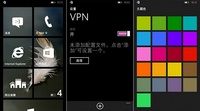
lumia_cherry_blossom_screenshots_1_wpcentral.jpgTwo more batches of images alleged to reveal Windows Phone 8.1 features have been leaked online. While the first batch is said to show theme colour options, VPN option page under settings and the main Live Tile home screen with a new wallpaper background layout, the second batch of images are claimed show the Windows Phone Store page, downloading page and the main settings page of Windows Phone 8.1.
lumia_cherry_blossom_screenshots_2_wpcentral.jpgA new leak also hints that WP8.1 OS users might have to upgrade their storage cards up to some minimum requirements by Microsoft. It has been said that the minimum level of storage cards the Windows Phone 8.1 OS users can install in their handsets will be Class 6 SDHC while the recommended storage card is Class 10 SDHC. Class 4 and below storage cards are said not to be supported.
Additionally, it has been reported that WP8.1 OS can detect and determine whether the storage card installed is usable or not. If the card is usable and fast enough, the users will be given the option to move apps from phone storage to external card storage.
Further, it has been suggested that Windows Phone 8 devices that sport a screen size less than 4.5-inches and 480x800 pixel resolution, might not be able to experience the 'more tiles option' in the WP8.1 OS update.
According to another report, Nokia will name the Windows Phone 8.1 update for its devices 'Lumia Cherry Blossom Pink'. A screenshot from a Chinese website (via WP Central), reveal a Nokia handset showing the 'Lumia Cherry Blossom Pink' update (See Below).

how to search for apps on nokia lumia

Want some cool apps to go along with that Nokia Lumia 900,  Nokia Lumia 800 or 710? The marketplace is extremely easy to search, but I have attempted to save you some time by putting together a small list of apps I think are useful and cool. If you have any suggestion, just leave a comment! Most of these are free applications for Nokia Windows Phone devices, however, there are some amazing (and by that I mean out-of-this-world) apps that are worth a couple of bucks. We’ll let you know which is is free, and which one is not.
To install these apps in the future, just head over to windowsphone.com, sign in with the same Live account you did on your Nokia WP, and install by following the link on this app guide. You will be able to install apps from windowsphone.com on your WP without even connecting your phone to your computer, it’s magical.

Saturday, 17 January 2015

HTC Mobile Secret Codes and tips

HTC SPECIFIC CODES                                    
*#*#4636#*#* =use to device information program (such as telephone, battery, wifi, ...) << all these generic system information tools in the market read the same data as this code/tool does - [working]


(3) *#*#7262626#*#* = use to show Field-Test     
                                            
(4)  *#*#3424#*#* = use to show HTC Function Test program (very useful!) - [working]

(5)  *#*#1111#*#* = use to Show software version                   
              
(6)  *#*#2222#*#* = use to Show hardware version       
                         
(7)  *#*#232338#*#* = use to Show WiFi mac address       
                    
(8)  *#*#232337#*# = use to Show Bluetooth mac address       
               
(9)  *#*#1472365#*#* =use to show GPS test   
                                     
(10) *#*#1575#*#* = use to show GPS test #2   
                                   
(11) *#*#232331#*#* =use to show Bluetooth test  
                               
(12) *#*#0*#*#* = use to show display test (?)       
                               
(13) *#*#2663#*#* =use to show touch screen version (?)   
               
(14) *#*#2664#*#* =use to show  touch screen test(?)   
                   
(15) *#*#759#*#* = use to show Rlz Debug UI (?)      

         
HARMFUL CODES      
                                          
BE CAREFUL WITH THEM!

(16) *#*#7780#*#* = use to show factory reset !! BE CAREFUL!       
        
(17) *##4772579# = use to show reset GPS - working?       
                 
(17) *2767*3855# = use to show factory format !! BE CAREFUL! 
                 
(18)  *#*#197328640#*#* = use to show service mode? - after two tests seems to be NOT WORKING    

UNKNOWN CODES  

BE CAREFUL WITH THEM!

(19) *#*#36666#*#* = use to show starts FlexNet Mode | Don't know what it is ... 

Discussion about flex net mode | So FlexNet may be a substitute for CarrierIQ

(20) *#*#7669633#*#* = FlexNet related                      
                       
(21) *#*#361066#*#*   = FlexNet related    
                                       
(22) *#*#361166#*#*  = FlexNet related     
                                         
(23) *#*#362066#*#*   = FlexNet related  
                                      
(24) *#*#366633#*#*   = FlexNet related  
                                           
(25) *#*#368866#*#*   = FlexNet related   
                                          
(26) *#*#3688633#*#* = FlexNet related                                                                


Note : we are not Responsible for any damage plz use this code your own risk

Disadvantages of 4G Mobiles

New frequencies means new components in cell towers. Higher data prices for consumers Consumer is forced to buy a new device to support t...